mod.assessments — Quizzes and exams
Community · Core category (always active)
What it does
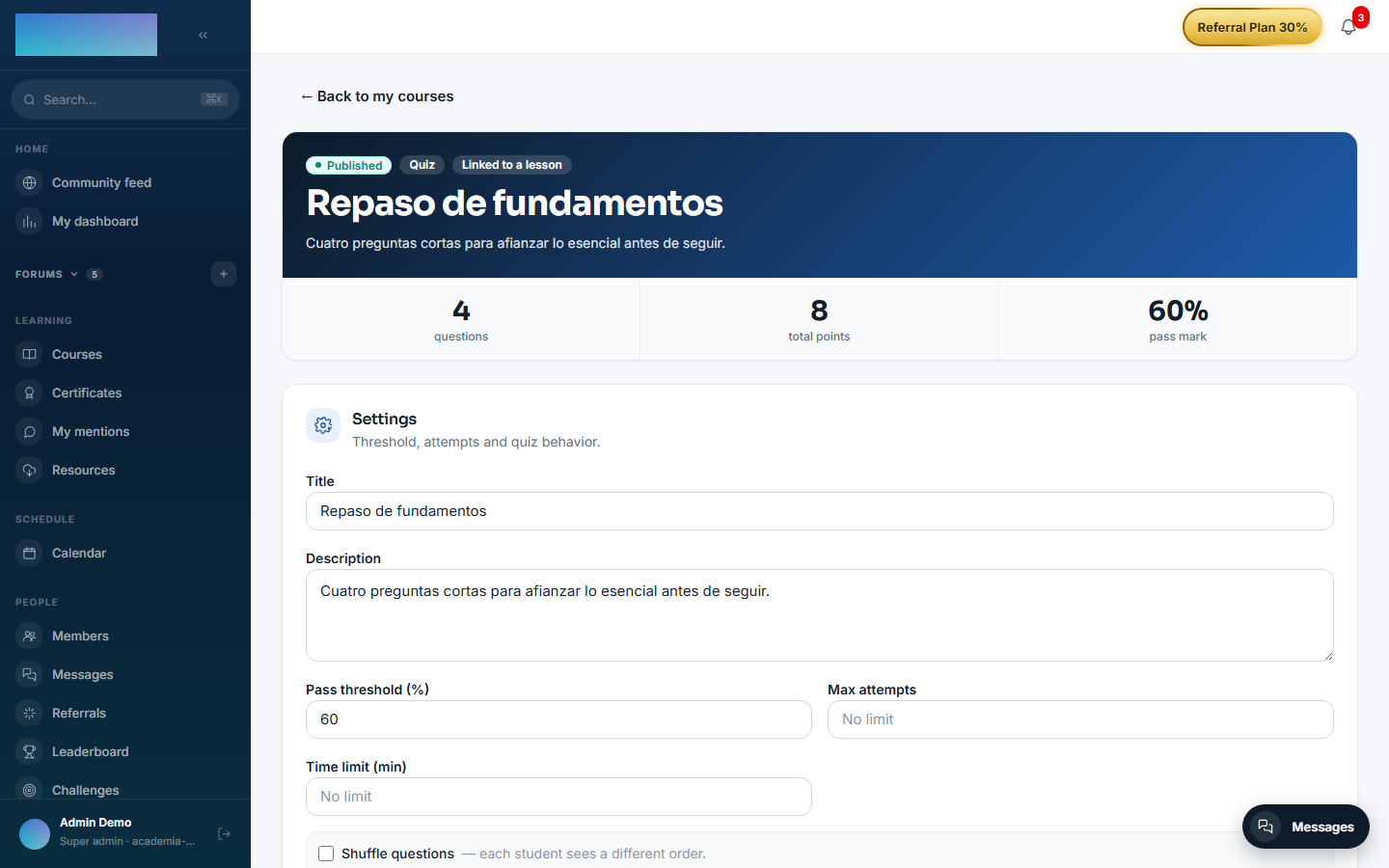
Assessments with auto-grading and manual grading. Six question types: SINGLE_CHOICE, MULTIPLE_CHOICE and TRUE_FALSE (graded automatically by a pure, testable scoring engine), FILL_IN_BLANK (accepted answers) and SHORT_ANSWER/LONG_ANSWER (which go to manual grading by the instructor, with a pending queue). Each quiz configures a pass threshold (60% by default), a maximum number of attempts, a time limit, question shuffling and whether feedback is shown on completion.
How it works
- The quiz starts as
DRAFT, questions are added and then it is published (at least one is required). - The student sees a solution-free view (
preview), starts an attempt, answers and submits; the engine grades the automatic part and, if there are open-ended questions, the attempt stays inPENDING_REVIEWuntil the instructor grades it from their panel. - An attempt that has run out of time returns
ATTEMPT_EXPIRED410. - The instructor's view includes
isCorrecton the options; the student's view never does. - With mod.ai-grader enabled, the instructor gets per-criterion score suggestions with justifications for the open-ended questions.
Configuration
- Activation: a
core-category module, always active. It does not appear in the "Modules" tab at/admin/configuracion?tab=modulesand cannot be disabled. - Per-tenant settings and environment variables: none. Everything is configured per quiz, in its editor (
/formador/quizzes/<id>, "Settings" card): "Pass threshold (%)" (default 60), "Max attempts" (empty = no limit), "Time limit (min)", "Shuffle questions" and "Show feedback to the student". - License: the whole module is Community; no feature requires Enterprise capabilities. AI score suggestions come from mod.ai-grader, not from this module.
Step-by-step usage
Creating and publishing a quiz (instructor)
- In the course builder (
/formador/cursos/<id>), create a "Quiz"-type lesson and click "Edit": you can "Create new quiz" or paste the UUID of an existing one ("…or paste the UUID of an existing quiz"). The quiz editor lives at/formador/quizzes/<id>. - In the editor's "Settings" card, adjust "Pass threshold (%)", "Max attempts", "Time limit (min)", "Shuffle questions" (each student sees a different order) and "Show feedback to the student"; click "Save settings".
- Click "Add question": pick the "Question type" ("Single choice", "Multiple choice", "True / False", "Fill in the blank", "Short answer (manual grading)" or "Long answer (manual grading)"), write the "Prompt" and the "Points".
- For choice questions, fill in "Options (mark the correct ones)" and, optionally, a per-option "Feedback (optional)".
- For "Fill in the blank", list the "Accepted answers (one per line)"; the comparison ignores case, accents and spacing.
- Open-ended types are not auto-graded: the editor warns that the attempt will stay in
PENDING_REVIEWuntil you grade it at/formador/correcciones.
-
With at least one question, click "Publish quiz". You can mix types in the same quiz.
Taking the quiz (student)
- In the Quiz-type lesson, the student sees the summary (number of questions, threshold, time and max attempts) and clicks "Start quiz".
- They answer and click "Submit answers". With a time limit, the header shows the deadline; past it, submitting returns
ATTEMPT_EXPIRED410. - The result is immediate if everything was auto-gradable: "You did it!" or "You did not reach the pass mark", with the score, points and — if the quiz allows it — "Retry quiz". On passing, the lesson is completed automatically (via
mod.learning). - With open-ended questions, the attempt stays "Under review by your instructor" until grading arrives.
Grading open answers (instructor)
-
/formador/correcciones("Pending gradings") lists the attempts waiting for review, with how many answers each one needs graded. The trainer dashboard (/formador) shows the pending counter.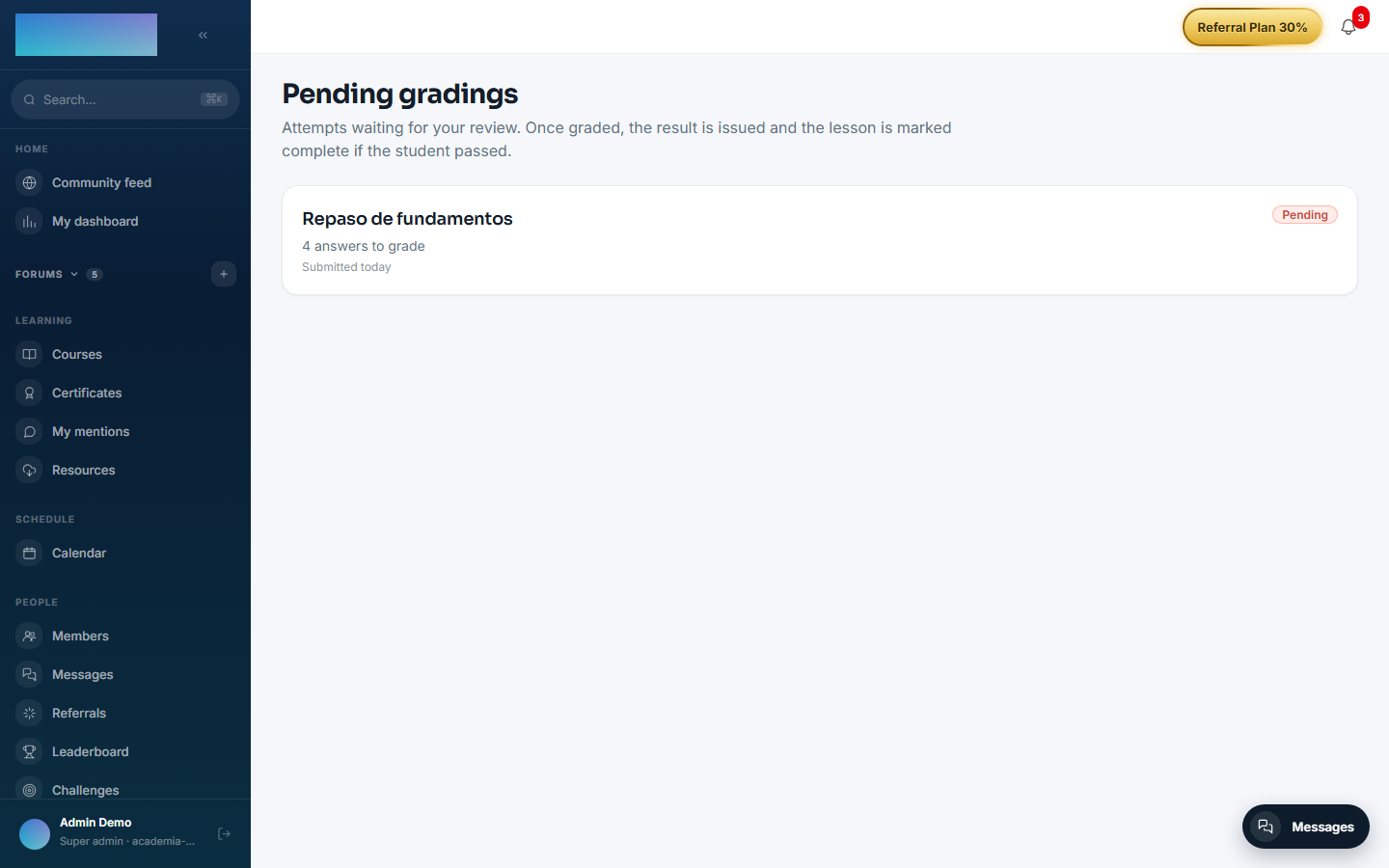
-
Open the detail (
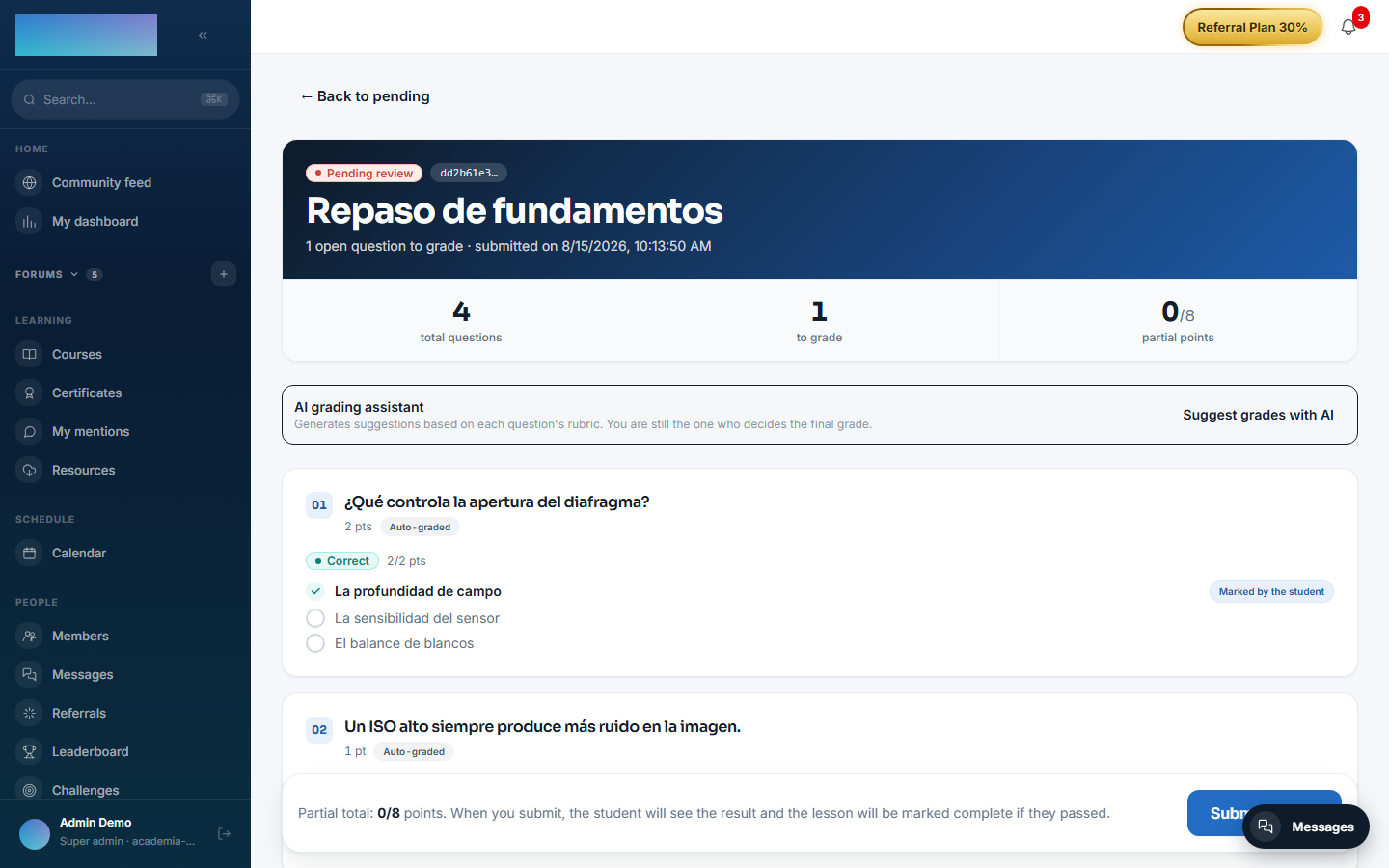
/formador/correcciones/<attemptId>): auto-graded questions are flagged "Auto-graded" and open ones "Manual", with the "Student's answer", the "Points (max N)" field and a "Feedback (optional)". - With mod.ai-grader active, "Suggest grades with AI" proposes a score and justification per question; "Apply to form" fills it in. The final call is always yours.
-
Click "Submit grades": the student sees the result and, if they passed, the lesson is marked complete.
Dependencies
- Hard:
mod.courses. Optional:mod.learning(auto-completes the QUIZ lesson on passing).
Data model
| Table | What it stores |
|---|---|
mod_assessments_quiz |
The quiz: threshold, attempts, time, status. |
mod_assessments_question |
Statement, type, points, accepted answers. |
mod_assessments_option |
Options for choice questions. |
mod_assessments_attempt |
A student's attempt and its score. |
mod_assessments_answer |
The answer per question (option or text). |
API
Prefix /modules/assessments, two surfaces: authoring/grading (instructor and above) and student. Details in Reference → Learning.
Events
Emits: assessments.quiz.published, assessments.attempt.started/submitted/pending_review/graded/passed/failed. It consumes none.