mod.courses — Courses and catalog
Community · Core category (always active)
What it does
This is the heart of the catalog: courses with a slug, title and status (DRAFT → PUBLISHED → ARCHIVED), modules as an ordered grouping inside a course, and typed lessons (VIDEO, HTML, PDF, TEXT, QUIZ, SCORM) with flexible JSON content. It includes admin-curated categories (name, color, icon) and advanced editing operations: bulk reordering of modules and lessons (drag & drop) and moving lessons between modules.
How it works
- Publishing goes through an open hook: before publishing,
mod.coursesrunscourses.publish.validateand any registered module can add blocking reasons (for example,mod.fundaerequires objectives and a duration). If there are any reasons, publishing fails with a 422 and the list of reasons. - Deletions are soft deletes with a logical cascade: removing a module or a lesson preserves students' historical progress.
- It is the piece almost every other module hangs off (learning, access-groups, billing, assessments, ai-content, ai-tutor…).
Configuration
- Activation: a
core-category module, always active in every tenant. It does not appear in the "Modules" tab at/admin/configuracion?tab=modules(that tab only lists deactivatable modules) and the API refuses to disable it; if a row is ever left withenabled=falsein the database, server startup re-enables it automatically. - Per-tenant settings: none. All configuration is per course, from the instructor's builder.
- Curated categories: the administrator manages them at
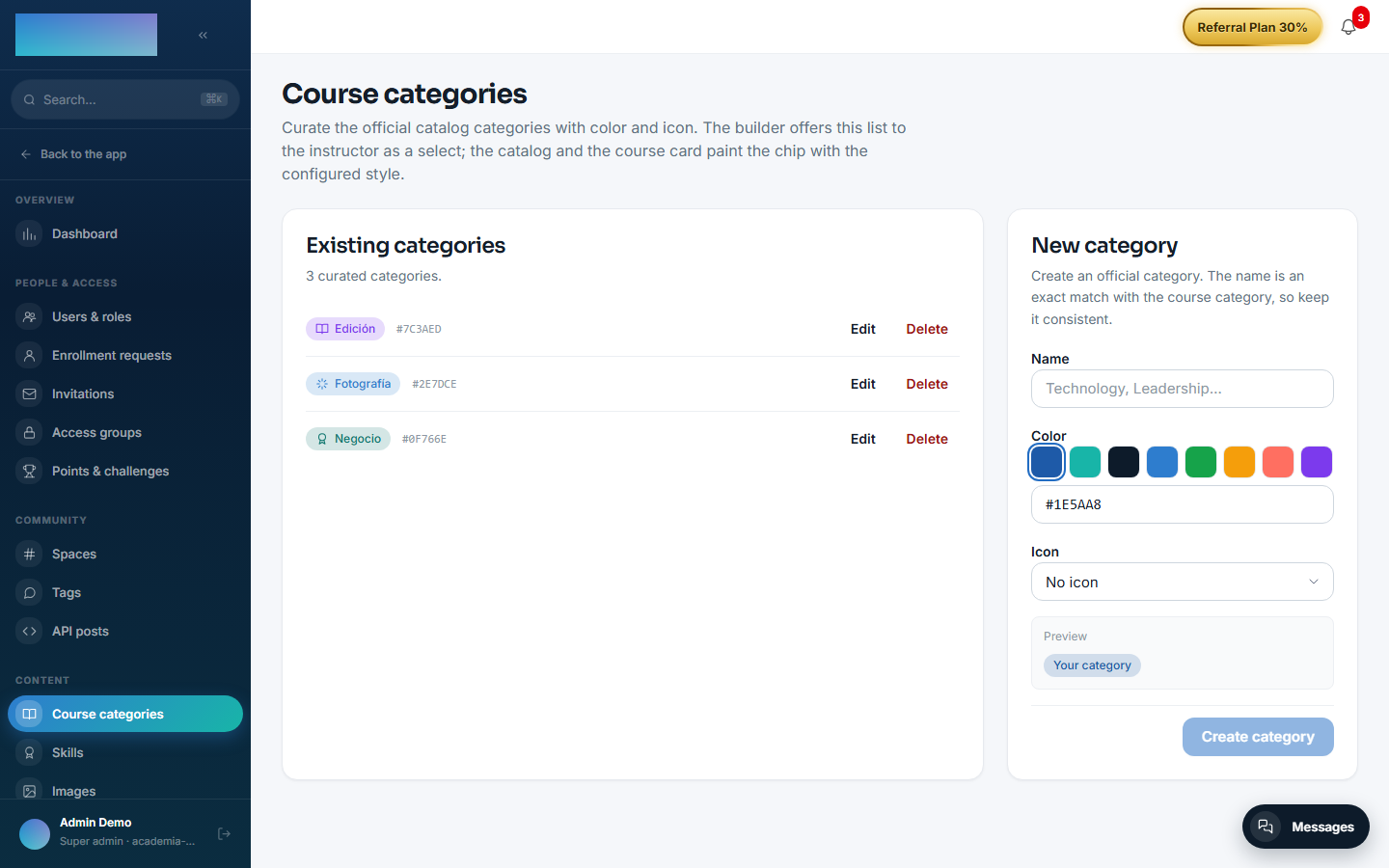
/admin/cursos/categorias("Course categories" screen): name, "Color" and "Icon". The name is an exact-text match with the category written on the course; the catalog and the course card render the chip with that style. - Environment variables: none of its own. Cover images and SCORM packages are stored in the instance's file backend (
/admin/configuracion?tab=storage, local disk or S3-compatible). - License: the whole module is Community; no feature requires Enterprise capabilities.
Step-by-step usage
Creating and building a course (instructor)
-
At
/formador/cursos("My courses"), click "Create new course". Fill in "Title" and "Slug" (auto-generated from the title, kebab-case: it will be the course's public URL) and, optionally, a description, "Category" and "Estimated duration (min)". Click "Create course": the course starts inDRAFT.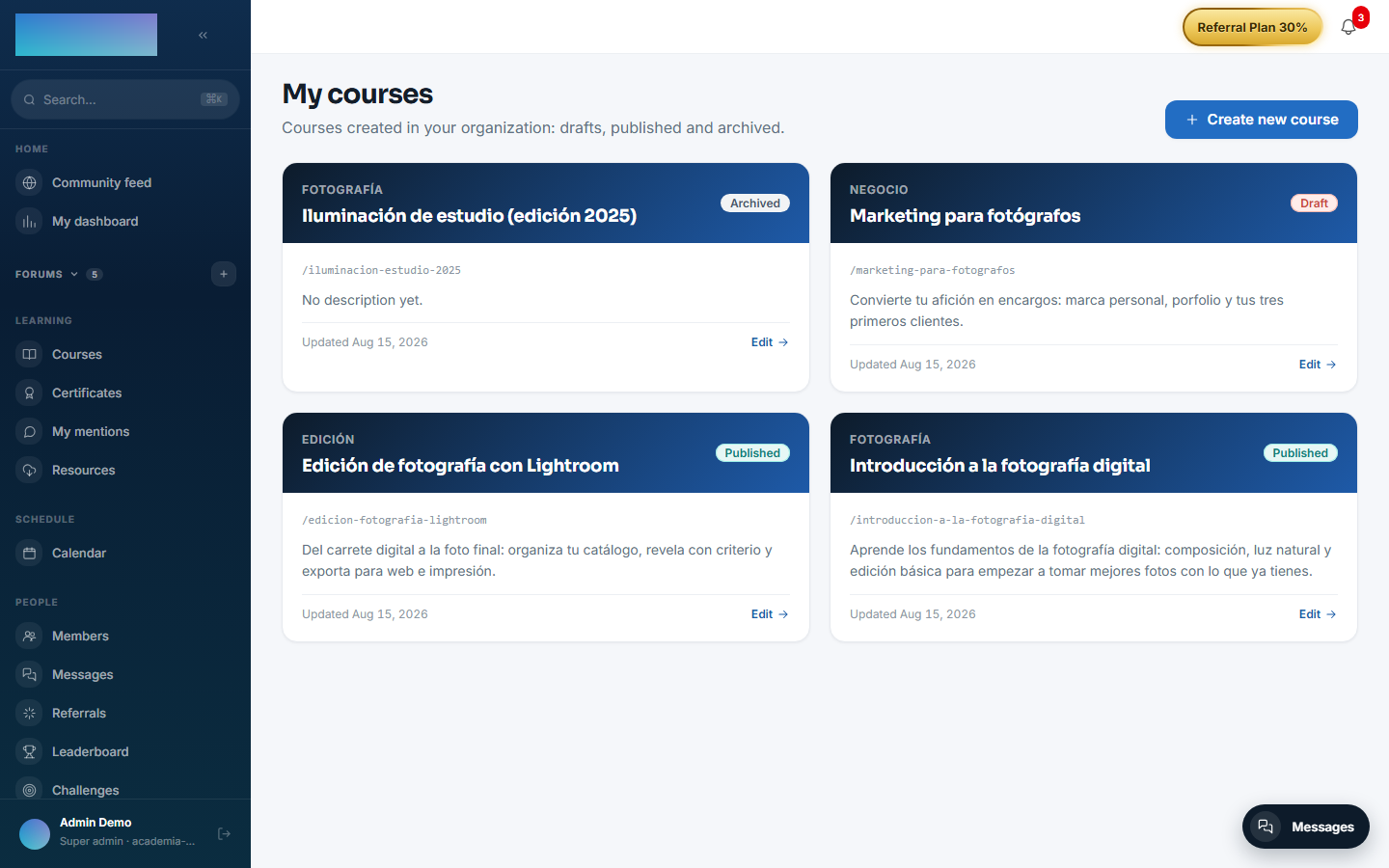
-
In the builder (
/formador/cursos/<id>), click "Add section", type the title and confirm with "Create section". Sections group related lessons. - Inside each section, "Add lesson": pick the "Type" (Video, HTML, PDF, Text, Quiz or SCORM), type the title and click "Create".
-
Click "Edit" on the lesson to load its content depending on the type: "Video URL" (YouTube, Bunny Stream or a
.mp4/.webm/.m3u8file) with clickable "Resources and chapters", "PDF URL", "HTML", "Text", a linked quiz (see mod.assessments) or "Upload SCORM package" (a.zipwithimsmanifest.xmlat the root). The "Publish date (optional)" field schedules the lesson: with a future date it shows in the list but stays locked until then.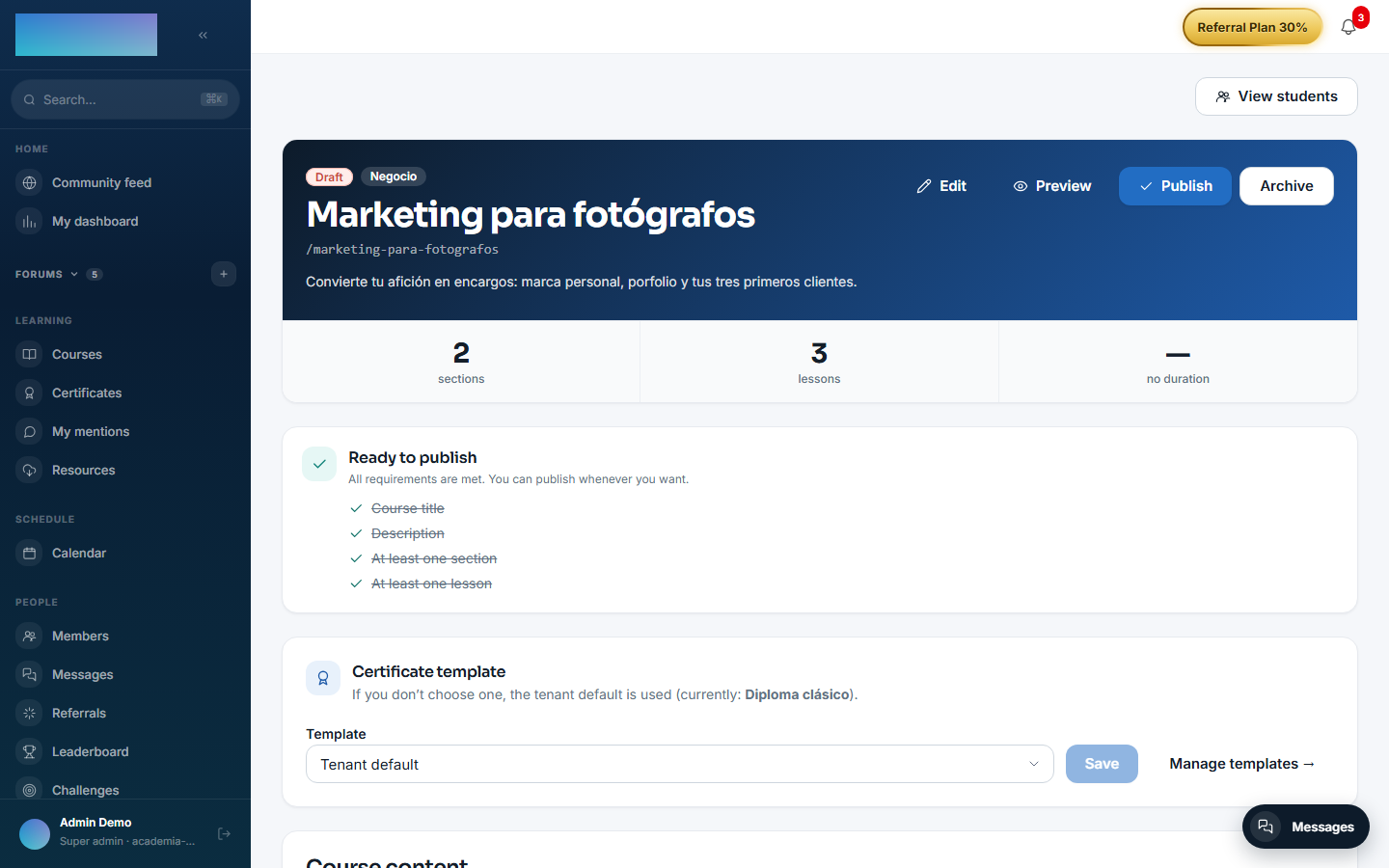
-
"Edit" in the header adjusts the metadata: description, "Category", "Estimated duration (min)", "Featured image" (the "Optimize" button recompresses it to WebP), "Featured video (URL)" and "External purchase URL" if this course is sold on an external page.
- Reorder sections and lessons by dragging (drag & drop); a lesson can also be moved to another section. Deletions are soft deletes: the item stops showing but students' historical progress is preserved.
- The "Before publishing" card lists the requirements: "Course title", "Description", "At least one section" and "At least one lesson". Once everything is met it switches to "Ready to publish". Click "Publish"; if a module hooked into the validation blocks publishing (e.g. FUNDAE), the API responds 422 with the reasons.
- "Archive" removes the course from the catalog without deleting anything; "Unarchive" returns it to
DRAFT(it is not republished automatically: you review it and click "Publish" again).
Curating the catalog categories (admin)
- At
/admin/cursos/categorias, create each category with "Name", "Color" and "Icon" and click "Create category". The preview shows the resulting chip. -
The builder offers this list to the instructor as the "Category" dropdown. If a category is deleted, courses that used it keep showing the name as plain text.
What the student sees
- The catalog (
/cursos) lists onlyPUBLISHEDcourses, with search and filters by topic and language. -
The course page (
/cursos/<slug>) shows the hero (featured video > image > fallback), the description and the syllabus. An instructor or admin can open the page of an unpublished course in "Preview" mode, without enrolling.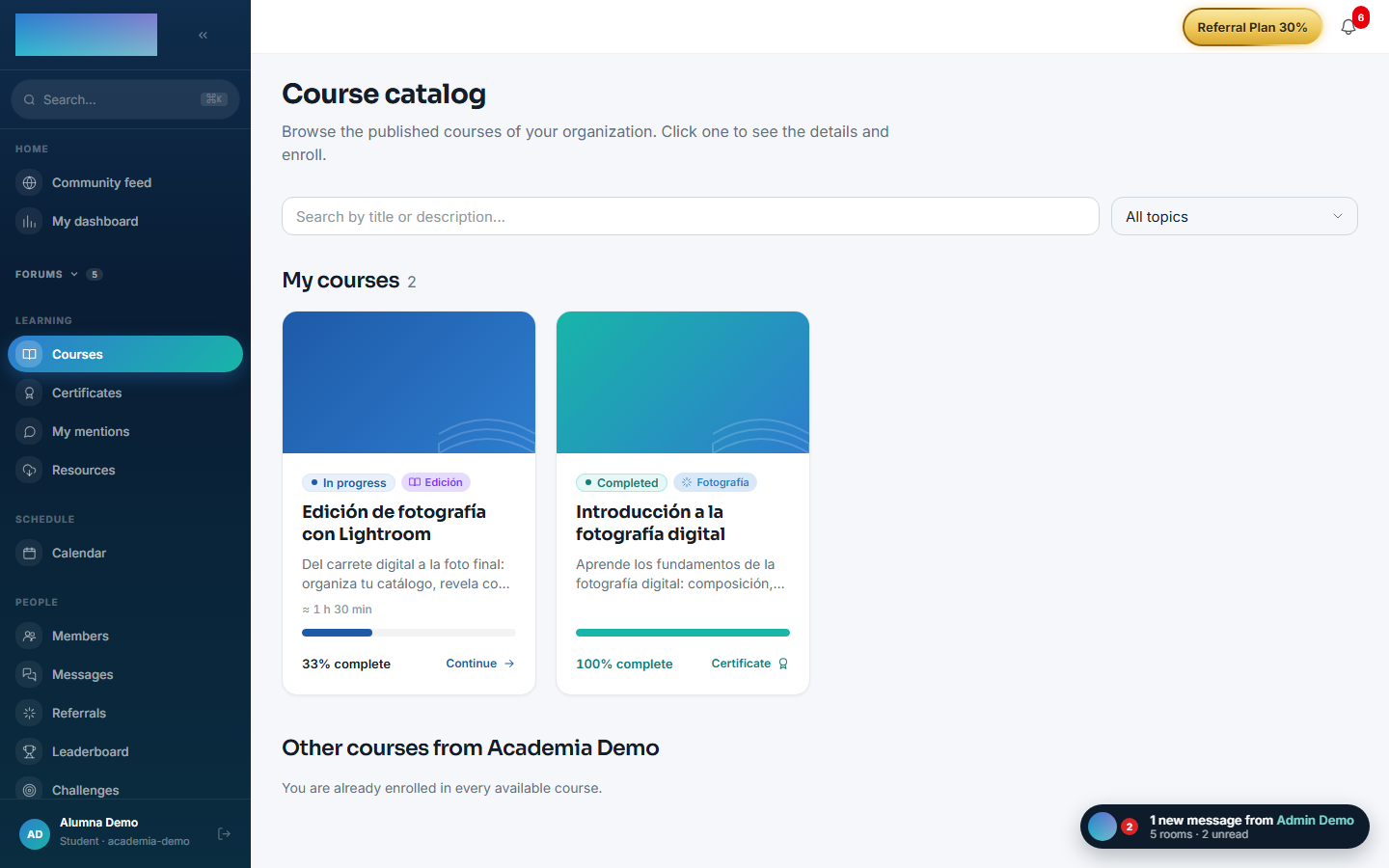
Dependencies
- Hard: none.
- Optional:
mod.certificates(validates the certificate template assigned to the course).
Data model
| Table | What it stores |
|---|---|
mod_courses_course |
The course: slug, title, status, category, certificate template. |
mod_courses_module |
An ordered grouping inside the course. |
mod_courses_lesson |
The lesson: type, JSONB content, duration, scheduled publication date. |
mod_courses_category |
Curated categories (name, color, icon). |
API
Prefix /modules/courses: CRUD for courses/modules/lessons, managed categories, status transitions and the bulk ordering endpoint. Details in Reference → Learning.
Events and hooks
- Emits:
courses.course.created/updated/published/archived/unarchived,courses.module.created/deleted,courses.lesson.created/updated/moved. - Exposes the hook
courses.publish.validate(the only active hook in the product — the reference pattern).